ZSculpt
ZBrush controls for Blender's Sculpt Mode.
Drag empty space to orbit, Alt to carve, hold Shift to smooth, Ctrl to mask. The moves your hands already know, plus a ZBrush-style Undo History bar and Face Set Layers. Every group of shortcuts has its own switch, and one click gives you Blender's defaults back.
Blender has no Python API for the undo list, so ZSculpt reads it with a safe, read-only method that exists only on Windows and Linux. On a Mac the bar stays hidden; every other feature works.
Blender 5.2 with ZSculpt 1.1, recorded as it happened. The keys at the bottom light up while they're held.
Your ZBrush hands, in Blender
Pick a move to see it. The dots mark what's new in version 1.1.
Every shortcut ZSculpt adds
They work in Sculpt Mode only, on top of Blender's keymap; your own keymap isn't changed. Red keys are the ones ZSculpt uses. Tap one to see what it does.
| Shortcut | What it does | Blender's default | Setting |
|---|---|---|---|
| Navigation | |||
| Drag on empty space | Rotate the view | Navigate on Empty Space | |
| Shift while rotating | Snap to the nearest axis view (in every mode) | Shift Snaps While Rotating | |
| Alt + drag on empty space | Pan; let go of Alt while dragging to zoom | Navigate on Empty Space | |
| RMB drag | Rotate the view | Sculpt menu on press | Right-Drag Navigation |
| Alt + RMB drag | Pan; let go of Alt to zoom | Right-Drag Navigation | |
| Ctrl + RMB drag | Zoom | Lasso mask | Right-Drag Navigation |
| RMB click | Sculpt menu, as before | Right-Drag Navigation | |
| F | Frame the whole mesh | Brush size | ZBrush-Style Hotkeys |
| P | Perspective / orthographic | Pinch brush | ZBrush-Style Hotkeys |
| Alt + click another mesh 1.1 | Sculpt that mesh instead, like picking a SubTool | Alt+Click Switches Object | |
| Brush | |||
| Alt + stroke | Invert the brush (ZSub) | Ctrl + stroke inverts | Always on |
| Hold Shift / Ctrl | Switch to the Shift brush (Smooth) / Ctrl brush (Mask); the header shows it | Shift: Smooth only during the stroke | ZBrush-Style Shift / Ctrl Brushes |
| Hold Shift / Ctrl + B | Pick a brush: it becomes the new Shift / Ctrl brush | Zoom border / render border | ZBrush-Style Shift / Ctrl Brushes |
| S | Brush size | Smooth brush | ZBrush-Style Hotkeys |
| U | Brush strength (ZBrush's Z Intensity) | ZBrush-Style Hotkeys | |
| Shift+U / Ctrl+U | Strength of the Shift / Ctrl brush | ZBrush-Style Hotkeys | |
| Space | Sculpt menu: brush, size, strength | Play animation | ZBrush-Style Hotkeys |
| B | Brush shelf | Box mask | ZBrush-Style Hotkeys |
| X | X symmetry on / off | Flip brush colors | ZBrush-Style Hotkeys |
| Shift+F | Wireframe on / off (ZBrush's PolyF) | Brush strength | ZBrush-Style Hotkeys |
| Mask | |||
| Ctrl + stroke | Paint mask; with Alt: unmask | Ctrl + stroke inverts | Ctrl Masking & Ctrl+Shift Visibility |
| Ctrl + click the model | Blur the mask; with Alt: sharpen | Ctrl Masking & Ctrl+Shift Visibility | |
| Ctrl + drag from empty space | Lasso (or box) mask; with Alt: unmask; hold Space to move the shape | Ctrl Masking & Ctrl+Shift Visibility | |
| Ctrl + click empty space | Invert the mask; with Alt: clear it | Ctrl Masking & Ctrl+Shift Visibility | |
| Ctrl + drag around nothing | Clear the mask | Ctrl Masking & Ctrl+Shift Visibility | |
| Ctrl+A | Mask everything | ZBrush-Style Hotkeys | |
| Visibility & face sets | |||
| Ctrl+Shift + drag | Keep what's inside, hide the rest; with Alt: hide the inside | Ctrl Masking & Ctrl+Shift Visibility | |
| Ctrl+Shift + click a face set | Isolate it (click again: show all); with Alt: hide it | Ctrl Masking & Ctrl+Shift Visibility | |
| Ctrl+Shift + click empty space | Show everything | Ctrl Masking & Ctrl+Shift Visibility | |
| Ctrl+Shift + drag around nothing | Invert what's visible | Ctrl Masking & Ctrl+Shift Visibility | |
| Ctrl+W | New face set from the mask, or from what's visible | Grow face set | ZBrush-Style Hotkeys |
| Subdivision & tools | |||
| D / Shift+D | Multires level up / down (sculpt and viewport together) | Subdivision Keys | |
| Ctrl+D | Divide: add a Multires level (adds the modifier if needed) | Subdivision Keys | |
| Q | Brush tool | Quick Favorites | Q W E R Tools |
| W / E / R | Move / Scale / Rotate tool | R: voxel / detail size | Q W E R Tools |
| Alt+R | Voxel size, or Dyntopo detail size (Blender's R, moved) | Q W E R Tools | |
| Undo History bar Not on macOS | |||
| Windows and Linux only. On macOS the bar stays hidden and these do nothing. | |||
| Click or drag the bar | Jump through your undo steps | Undo History Slider | |
| Esc while dragging | Back to where you started | Undo History Slider | |
| Wheel over the bar | One step back / forward | Undo History Slider | |
Blender's default is what the key does in Sculpt Mode without ZSculpt (Blender 5.2). Keys ZSculpt doesn't use keep working as usual, for example Ctrl+I invert mask, Ctrl+R remesh, Alt+Q transfer mode and the brush keys. With the Face Set brush, Shift keeps Blender's relax-borders stroke, and stencil brushes keep their right-mouse controls.
Every group has its own switch
In Edit › Preferences › Add-ons › ZSculpt. Turn a group off and its keys go back to Blender's at once. This is the real panel:
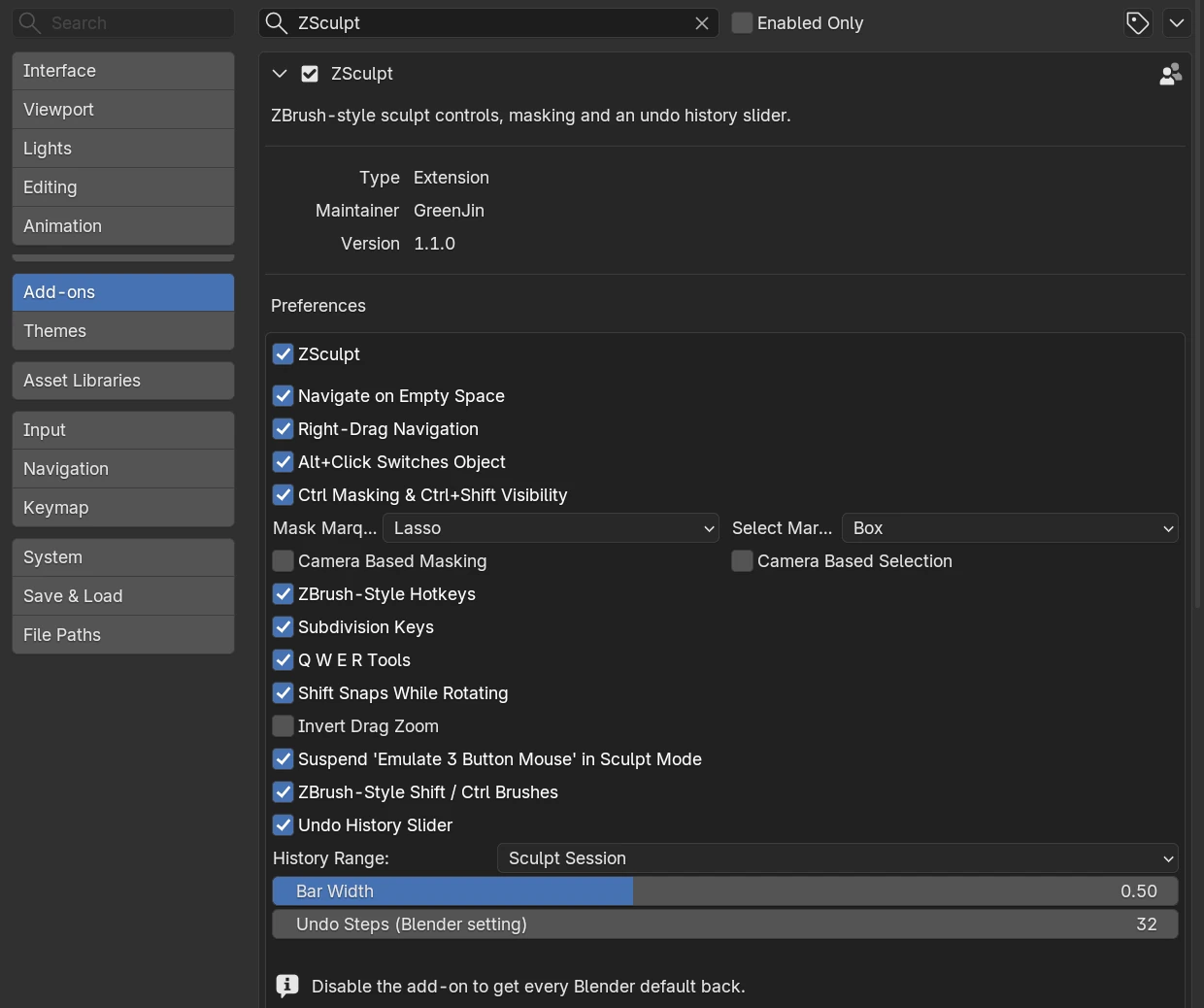
- OnZSculptThe master switch: off means Blender's default sculpt controls, everywhere at once. The Enabled button in the sidebar tab is the same switch.
- OnNavigate on Empty SpaceDrag empty space to rotate; Alt+drag to pan, let go of Alt to zoom.
- OnRight-Drag NavigationRight-drag rotates, Alt pans, Ctrl zooms. A right click still opens the sculpt menu.
- OnAlt+Click Switches ObjectAlt+click another visible mesh to sculpt it. Alt+drag still carves or pans.
- OnCtrl Masking & Ctrl+Shift VisibilityEvery Ctrl mask move and Ctrl+Shift hide / isolate move.Mask Marquee Lasso (default) or Box · Select Marquee Box (default) or Lasso · Camera Based Masking / Selection off by default: drags go through the whole mesh like ZBrush; on: only faces facing you.
- OnZBrush-Style HotkeysS, U, Shift+U, Ctrl+U, Space, B, X, F, Shift+F, P, Ctrl+W, Ctrl+A.
- OnSubdivision KeysD, Shift+D and Ctrl+D for Multires.
- OnQ W E R ToolsBrush, Move, Scale, Rotate. Blender's R moves to Alt+R.
- OnShift Snaps While RotatingHold Shift during any view rotation to snap to the nearest axis view. Works in every mode.
- OffInvert Drag ZoomFlips the direction of the Alt-release and Ctrl+right-drag zoom.
- OnSuspend 'Emulate 3 Button Mouse' in Sculpt ModeThat Blender option turns Alt+click into a middle click. It's switched off only while you sculpt and comes back when you leave.
- OnZBrush-Style Shift / Ctrl BrushesHolding Shift or Ctrl switches to the Smooth / Mask brush, so the header shows it; pick another while holding to replace it. Off: Blender's built-in temporary Smooth and Mask.
- OnUndo History Slider Not on macOSThe bar at the top of the viewport (Windows and Linux).History Range Sculpt Session (default: steps since you entered Sculpt Mode) or Everything · Bar Width · Undo Steps, Blender's own setting.
One switch for everything: switch the Enabled button in the ZSculpt tab to Disabled, and all shortcuts and features go back to Blender's defaults. Click it again to get ZSculpt back.
The ZSculpt tab
In Sculpt Mode, press N and open the ZSculpt tab of the 3D Viewport sidebar.
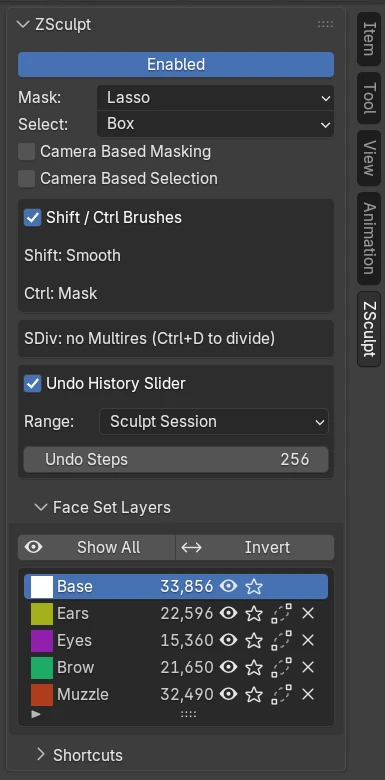
- EnabledThe master switch. Disabled gives you Blender's own controls at once.
- Mask / SelectLasso or box for Ctrl and Ctrl+Shift drags. The Camera Based options limit them to faces facing you.
- Shift / Ctrl BrushesWhich brushes Shift and Ctrl give you, with their Intensity. A reset arrow appears once you change one.
- SDivThe Multires level as one slider, like ZBrush's. No Multires yet? Ctrl+D adds it.
- Undo History Slider Not on macOSOn or off, its range, and Blender's Undo Steps (how far back the bar can go). On a Mac this box shows why the bar is unavailable.
- Face Set LayersShow All and Invert, then every face set in its viewport color with its face count: the eye hides it, the star solos it, merge folds it into the selected one, X deletes it (back to Base). Double-click a name to rename it. Everything undoes with Ctrl+Z.
- ShortcutsThe cheat sheet, folded until you need it. The same list is in the Preferences.
Specs & questions
Specs
- Blender
- 5.2 or newer (an extension: install from disk)
- Works in
- Sculpt Mode in the 3D Viewport, with a mouse or a pen
- Systems
- Windows, macOS, Linux (pure Python). The Undo History bar needs Windows or Linux; on macOS it stays hidden and everything else works
- Your keymap
- Untouched. ZSculpt's keys are added on top, in Sculpt Mode only, while it's enabled
- Needs
- Nothing else to install, no internet. At start it writes one temporary .blend to read Blender's undo layout
- Version
- 1.1.0
- License
- GPL-3.0-or-later
Questions
Will it change my keymap or settings?
No. ZSculpt adds its keys on Blender's add-on layer, in Sculpt Mode only. Switch Enabled off, or disable the add-on, and Blender's defaults are back at once.
I want Blender's S (or any key) back
Turn off that key's group in Preferences › Add-ons › ZSculpt. The table above names the setting for every shortcut.
Does it work with a pen tablet?
Yes. Clicks and drags are told apart with Blender's own tablet drag threshold, so taps work as clicks.
I use "Emulate 3 Button Mouse"
It turns Alt+click into a middle click, which would break the Alt moves. ZSculpt switches it off while you're in Sculpt Mode and back on when you leave.
Why is the Undo History bar missing on my Mac?
Blender has no Python API for the undo list, so ZSculpt reads it with a safe, read-only method that exists on Windows and Linux. Everything else works on macOS.
Multires, Dyntopo, Voxel Remesh?
All fine. D, Shift+D and Ctrl+D drive Multires, Alt+R sets the voxel or detail size, Ctrl+R remeshes as usual. The Face Set Layers list is off while Dyntopo is on.
Is ZSculpt made by Maxon?
No. ZBrush is a trademark of Maxon. ZSculpt is an independent add-on, not affiliated with or endorsed by Maxon.
Sculpting in a minute
- InstallDrag the zip into Blender, or Edit › Preferences › Get Extensions › drop-down at the top right › Install from Disk…
- SculptEnter Sculpt Mode. ZSculpt is on: drag empty space to orbit, Alt to carve, Shift to smooth, Ctrl to mask.
- Open the ZSculpt tabPress N in the 3D Viewport: the Enabled switch, Shift / Ctrl brushes, SDiv, the Undo History bar and Face Set Layers.
- Make it yoursEdit › Preferences › Add-ons › ZSculpt: turn groups on or off, pick lasso or box, set the bar's range and width.